 FDIC-Insured - Backed by the full faith and credit of the U.S. Government
Our Business Banking mobile app puts complete financial control right in your pocket. Built for business owners on the move, the mobile dashboard is streamlined for speed and security, giving you instant access to your cash flow, real-time transaction tracking, and core business services. With biometric login and quick-action navigation, you can securely monitor deposit balances, deposit checks remotely, and approve pending payments anytime, anywhere.
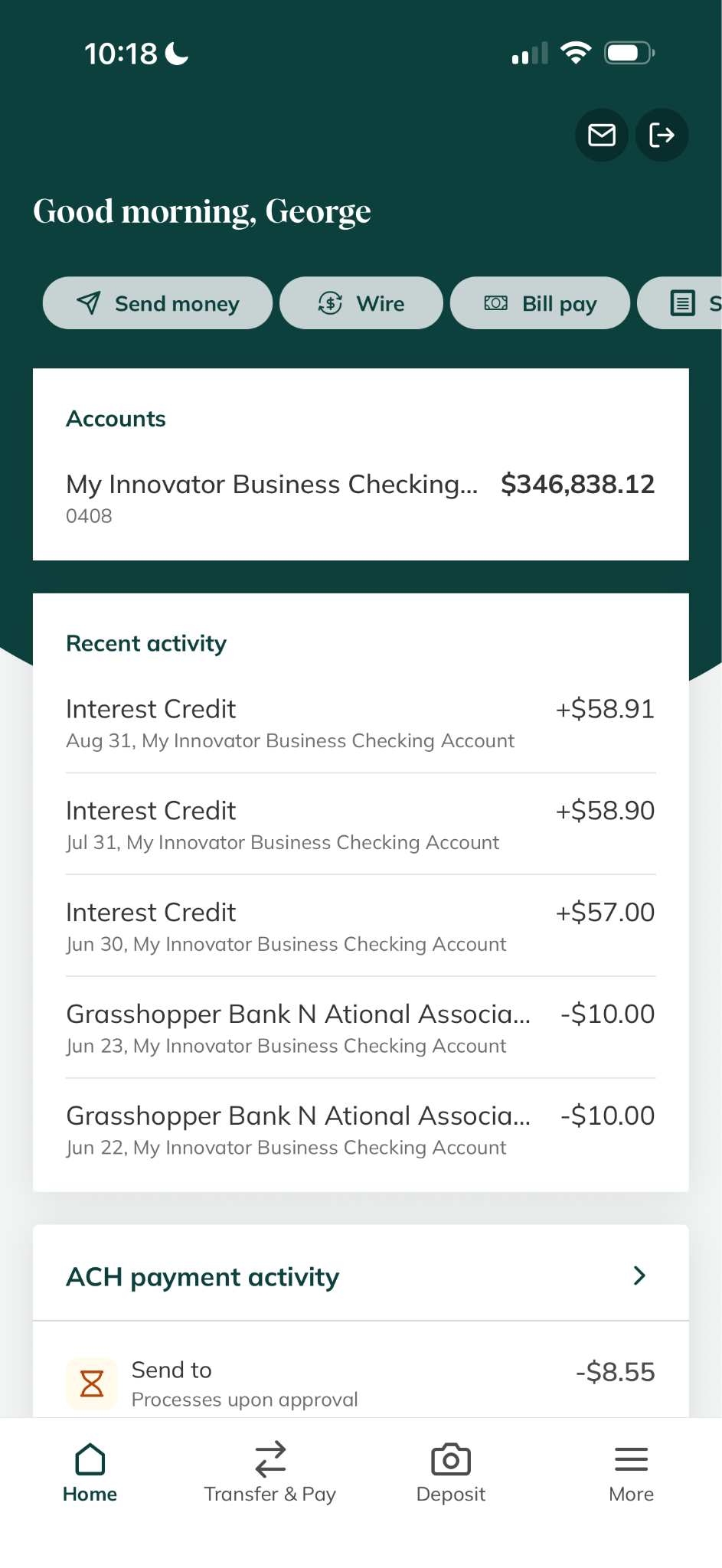 What You'll Find on Your Dashboard
- Quick Action Tabs: Located directly beneath the greeting, this customizable shortcut menu allows you to quickly initiate transactions or match your daily workflow by enabling or disabling specific tabs, or dragging them to rearrange their order.
- Balances: A consolidated card displaying a list of all your active deposit and loan accounts. Click on any account name to view detailed transaction histories, account numbers, and routing information.
- Recent Transactions: A real-time ledger that displays your most recent transaction. history, including pending and completed debits and credits, with direct options to search, filter, or contact support for a specific transaction.
- Promotions: A dedicated space displaying tailored promotional banners specifically for your business segment.
- Services: An in-app carousel reserved for the core utilities you need to actively administer your account on the go.
- Bottom Navigation Bar: A persistent, four-button menu at the base of your screen that lets you instantly jump between your dashboard, move money, deposit a check, and more.
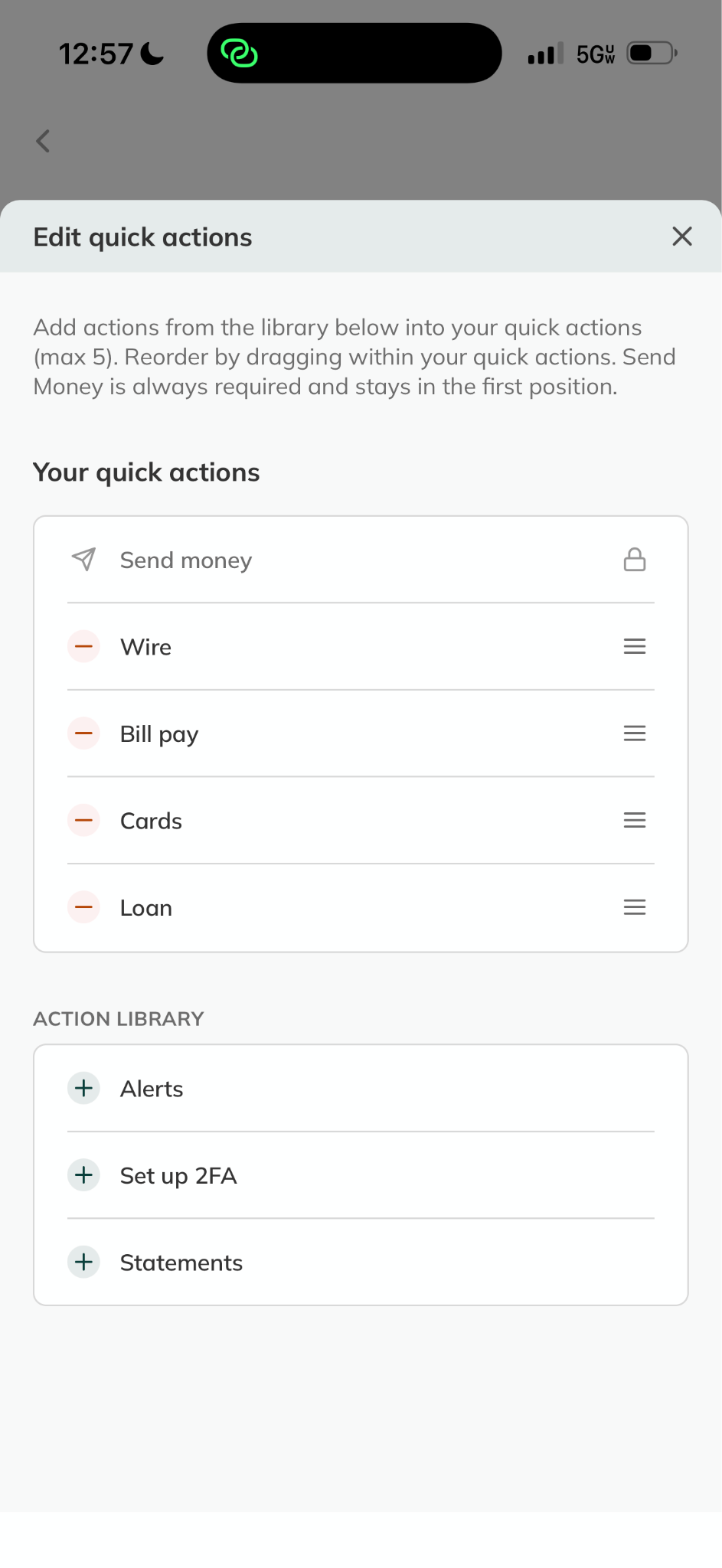 Customizing Your Quick Actions
The quick action tabs at the top of your home screen act as a customizable shortcut menu. You can tailor this toolbar to match your daily workflow so your most-used payment actions are always just one click away.
How to Reorder or Customize Your Tabs
- Swipe left through the quick actions, then click the three vertical dots located next to the present set of tabs (
)
- A screen will slide open, showing all available quick actions
- Remove an action by click the em dash icon (—)
- Reorder your actions by clicking and holding the drag handle (☰)
- Enable a quick action from the library by clicking the plus icon (+)
- Changes are saved in real-time, so once you are finished customizing your shortcut menu, simply click the back button (<) to return to the home screen.
⚠️ Important Note: You can select up to 5 active shortcuts to display on your home screen at any given time. You can also access and modify your quick actions at anytime by scrolling to the bottom of the home screen and tapping customize home.
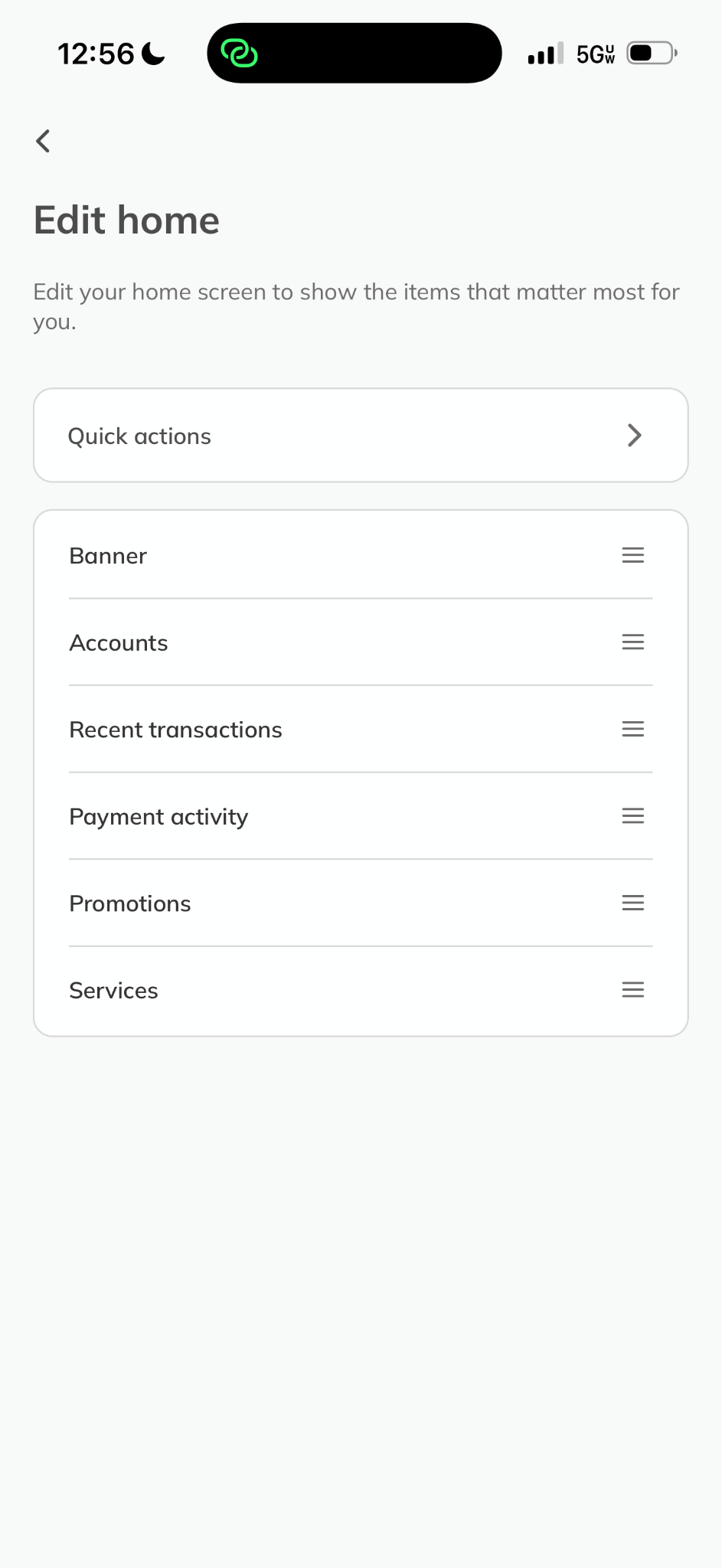 Customizing Your Home Screen
To help you work more efficiently, the home screen is designed to adapt to your daily routine, allowing you to rearrange the main cards to prioritize what's most important for your business. Whether you want to see your account balances at the top or keep a close eye on your spending, you can create a layout that fits your needs.
How to Rearrange Your Home Screen
- Scroll to the very bottom of your home screen and click Customize home.
- A screen will slide open, displaying your active cards.
- Click and hold the drag handle (☰) next to any card, then slide it up or down to change its priority on your screen.
- Changes are saved in real-time, so once you are finished customizing your shortcut menu, simply click the back button (<) to return to the home screen.
⚠️ Important Note: You can also access and edit your quick actions from this screen. Just simply tap Quick Actions, then enable, disable, or re-order the actions in your shortcut menu. Once complete, click the exit button (x) to return to the previous screen.
Helpful Resources & Policies
| Resource | URL |
| A Complete Guide to the Transfer & Pay Tab | View Guide |
| Transaction Cutoff Times | View Cutoff Times |
| Understanding Account Limits & How to Increase Them | View Article |
| Qualifying for Automatic Limit Increases | View Article |
| Mobile Banking Guides | View Guides |
Support
If you encounter any issues or need further assistance, you contact Client Services Monday-Friday 9am-9pm ET by dialing 888.895.9685 or emailing support@grasshopper.bank.
For your convenience, we also offer support via secure message or chat.